User guide
Together with the software you will get a software key that consists of a "Serial number" and an "Activation" code. These two numbers can be found in the packaging of the software, and they must be inserted in the respective fields of the Software key tool. The Software key tool is installed together with the software and can be found at the bottom right corner of the task bar on MS windows (next to the antivirus) and at the top right corner of the MAC’s Menu bar. The Icon color will vary, based on its status. To activate the "Software key", you must insert the "Serial number" and the respective "Activation code".
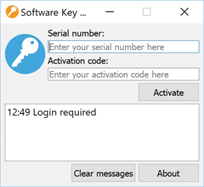
Generally, at the software start-up (if you have not already activated the software key) you are prompted to type your serial number and activation code in order to activate the software. In order to proceed with the activation you must have an active internet connection. After typing the key and activation code press "Activate" to proceed. if you get a "Key updated successfully" message the serial has been activated and the software is ready to start. Run the software once more to start it.
At this point we must mention that the software key is a utility that has been installed on your computer and you can access it on your system tray. If the software cannot be started bring up software key and check the status of your key. If the key is inactive, you must type your activation code and re-activate.
Using the software on a different computer
You must click on the "Software key" tool that you will find at the bottom right corner next to your antivirus (on Windows) and at the top right corner of the MAC’s Menu bar. Click "Logout" while you are connected to internet.
|
|
Windows |
mac OS |
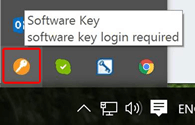
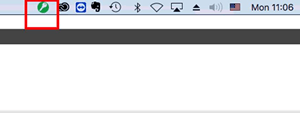
1.You will be logged out immediately
2.Now you can go to another PC and open the "Software key" login tool by simply running the software.
3.Type the "Serial number" and "Activation Code" in the respective fields.
4.Click "Activate" and the software key will be activated. You can now work with the software on this PC.
5.To switch back to the first PC or any other PC, you have to repeat the process described above.
Just remember, every time you want to change PC you have to LOGOUT first and then login on the other PC.